How to Fix Common Subtitle Timing and Synchronization Problems

Why Subtitle Timing Problems Happen (And How To Fix Them Fast)
Subtitle timing problems are among the most frustrating issues for video creators, educators, and viewers alike. Whether subtitles appear too early, too late, or drift out of sync as a video progresses, these errors disrupt the viewing experience and reduce accessibility. Fortunately, you can fix subtitle timing problems—often in just a few steps—with the right tools and a basic understanding of subtitle formats and synchronization issues.
If your subtitles don't match up with the audio, the cause is usually either a timing offset (all subtitles are too early or late), drift (subtitles gradually go out of sync), or a combination of both. The good news: you don’t need to be a technical expert to resolve these issues. Modern AI-powered tools like AIVideoSummary make it easier than ever to transcribe video to text, adjust subtitle timing, and ensure accurate synchronization, even across multiple languages or video formats.
In this article, you'll learn:
- Why subtitle timing issues occur
- How to identify and fix subtitle synchronization errors
- Step-by-step methods using AI and manual tools
- Practical examples for different video workflows
- When to use AI video transcription for best results
Let's dive in and get your captions perfectly aligned with your content.
---
Understanding Subtitle Timing and Synchronization
What Is Subtitle Timing?
Subtitle timing refers to the precise moment when captions appear and disappear on screen to match spoken dialogue or important sounds in a video. Accurate timing ensures that viewers can read subtitles comfortably and that captions enhance, rather than distract from, your content.
Common Causes of Subtitle Timing Problems
- Offset (Delay or Advance): All subtitles are consistently ahead of or behind the audio.
- Drift: Subtitles start in sync but gradually go out of sync (often due to frame rate mismatches).
- Incorrect Frame Rate: Subtitles created for one frame rate (e.g., 25fps) played on a video with another (e.g., 29.97fps).
- Editing or Re-encoding: Trimming or editing the video without adjusting existing subtitle timing.
- Manual Errors: Typos or mistakes in the subtitle file (e.g., incorrect timecodes).
Subtitle File Formats and Timing
The most common subtitle formats include:
- SRT (SubRip): Simplest and most widely supported, uses hours:minutes:seconds,milliseconds timing.
- VTT (WebVTT): Similar to SRT but with web-specific features.
- ASS/SSA (Advanced SubStation Alpha): Allows for advanced styling and positioning.
Understanding your subtitle format is important, since each handles timing in a slightly different way. For a detailed guide on subtitle formats and timestamp accuracy, check out How to Create Perfect Subtitles with Accurate Timestamps.
---
Step-by-Step: How to Fix Subtitle Timing Problems
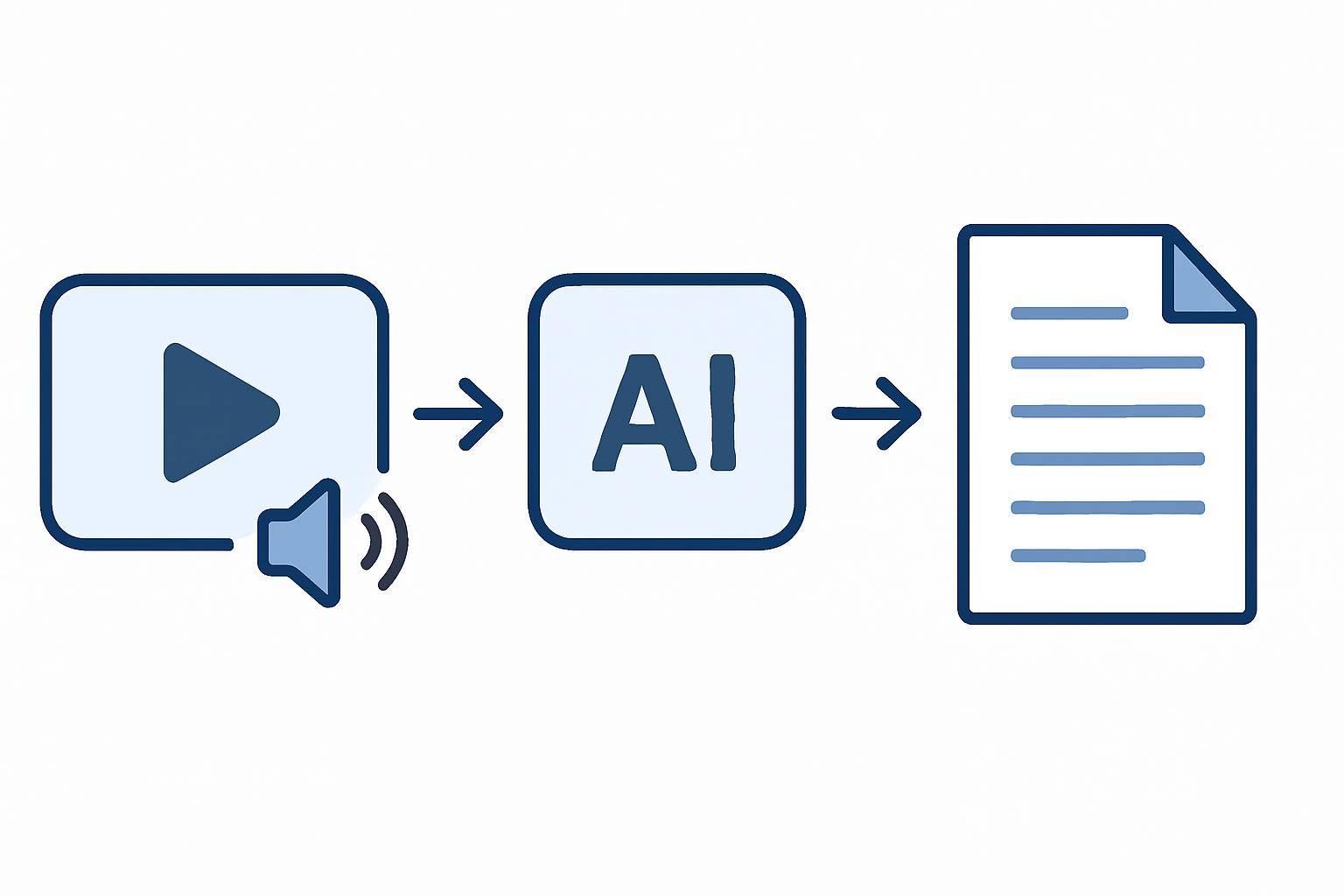
1. Identify the Subtitle Timing Issue
Start by playing your video with the subtitles enabled. Note whether:
- All subtitles are too early or too late (offset)
- Subtitles start in sync but drift out of sync over time
- Only certain sections are out of sync
This will determine your correction method.
2. Choose Your Fixing Method: Manual vs. AI-Powered Tools
| Method | Best For | Speed | Accuracy | Required Skills | Tools/Examples | |---------------|-----------------------------|---------|----------|----------------|-------------------------------| | Manual | Simple offset, minor edits | Moderate| High | Basic editing | Subtitle Edit, Aegisub | | AI-Assisted | Large files, complex drift | Fast | Very Good| Beginner | AIVideoSummary, Amara |
Manual methods work best for simple shifts. For complex drift, AI tools like AIVideoSummary can save hours of manual adjustments.
3. Fixing Subtitle Offset (Subtitles Too Early or Late)
If all subtitles are consistently out of sync:
Manual:
- Open the subtitle file (e.g., SRT) in a subtitle editor like Subtitle Edit or Aegisub.
- Use the "Shift" or "Sync" tool. Enter the delay (positive for late, negative for early).
- Preview the video to confirm alignment.
- Save the adjusted file.
AI-Assisted:
- Upload your video to AIVideoSummary or a similar tool.
- Let the AI generate new subtitles aligned with the audio.
- Download and test the new subtitle file.
4. Fixing Subtitle Drift (Gradual Desynchronization)
Subtitle drift is more challenging. It often results from mismatched frame rates or editing the video after creating subtitles.
Manual:
- Open the subtitle file in your editor.
- Use the "Change Speed" or "Stretch/Shrink" function.
- Enter the original and new video durations or frame rates.
- Preview and fine-tune as needed.
AI-Assisted:
- Use AIVideoSummary to transcribe the video again, generating subtitles with fresh, accurate timecodes.
- Compare the new file with the old one to spot improvements.
5. Fixing Section-Specific Errors
Sometimes, only certain sections are misaligned (e.g., after a cut or edit). In this case:
- Split the subtitle file at the affected region.
- Adjust only the affected section using the "Shift" function.
- Merge the sections back together and test.
---
Practical Example: Fixing Subtitle Drift in an Educational Video

Imagine you have a 45-minute lecture video. After editing out the first 90 seconds, the subtitles no longer match the audio.
How to Fix:
- Open your subtitle file.
- Use the "Shift" tool to subtract 90 seconds from all timecodes.
- If you notice drift at the end, use the "Change Speed" function to match the new duration.
- Preview, then export the corrected file.
Or, try this with AI:
- Upload your edited video to AIVideoSummary. The AI will analyze the current audio, create a new transcript, and generate subtitles that are perfectly in sync.
For more detailed workflows, see:
---
Comparison Table: Manual Editing vs. AI Subtitle Correction
| Feature | Manual Editing | AI Subtitle Tools (AIVideoSummary) | |------------------------|-----------------------|---------------------------------------------------------------| | Speed | Slower (10–60 min) | Fast (2–5 min for most videos) | | Ease of Use | Requires learning UI | Beginner-friendly, automated | | Handles Drift | Limited, manual | Automatic, robust | | Multiple Languages | May require language skills | Supports 30+ languages | | Subtitle Accuracy | High (with effort) | Very good (AI may need minor correction) | | Cost | Free/low-cost tools | Free trial, then tiered pricing | | Scalability | Not ideal for batches | Processes multiple videos/long files easily |
---
Tips to Prevent and Minimize Subtitle Timing Issues
- Always create or re-align subtitles after final video edits.
- Use AI transcription (AIVideoSummary) for fresh, accurate timecodes.
- Match subtitle and video frame rates.
- Preview subtitles on the actual platform (YouTube, Vimeo, LMS, etc.).
- Double-check for non-standard subtitle formatting.
- Save backups before editing.
---
When to Use AI vs. Manual Subtitle Correction
Choose manual editing for:
- Minor timing offsets (e.g., subtitles are all 2 seconds late)
- Small, one-off projects
Choose AI-powered tools for:
- Long-form content (lectures, webinars)
- Videos with complex drift or multiple edits
- Multilingual subtitles
- Batch processing videos for accessibility
AI is not 100% perfect—especially with poor audio quality, heavy accents, or overlapping speech. Always review the output before publishing. For more on AI subtitle precision, see AI Subtitle Accuracy: What You Need to Know and AI Transcription Accuracy.
---
Advanced Troubleshooting: Frame Rates, File Formats, and Re-Encoding
Matching Frame Rates
Frame rate mismatches (e.g., 23.97fps subtitles on a 25fps video) can cause drift. Use video editing software or subtitle tools to:
- Check the video's actual frame rate
- Convert subtitle timing based on original vs. new frame rate
- Use the "Stretch/Shrink" function in Subtitle Edit or similar tools
Subtitle File Format Conversion
If you need to convert SRT to VTT, or vice versa, use a reliable converter. Some formatting features (e.g., styling in ASS/SSA) may not carry over.
Re-encoding Videos
Re-encoding (changing video format or compressing) can sometimes shift audio or cause desync. Always re-check subtitle timing after major re-encodes.
For specialized needs (legal, medical, or educational video transcription), see:
---
Quick Reference: Fixing Subtitle Timing Problems
For small shifts:
- Use manual "Shift" or "Sync" tools
For drift or complex cases:
- Re-transcribe with AI video transcription
To try it instantly:
- Upload your video or paste a URL into AIVideoSummary and let AI handle the heavy lifting—then review, edit, and download your fixed subtitles.
---
FAQ: Fixing Subtitle Timing and Synchronization Issues
Frequently Asked Questions
#### How do I know if my subtitle timing is off? Play your video with subtitles enabled. If captions appear before or after the corresponding speech, or gradually drift out of sync, you have a timing issue.
#### What causes subtitle drift? Subtitle drift is usually caused by mismatched frame rates between the video and subtitle file, or by editing the video after subtitles were created.
#### Can AI tools fix all subtitle timing problems? AI tools like AIVideoSummary are highly effective for most cases, but may not be perfect with poor-quality audio or overlapping dialogue. Manual review is always recommended.
#### Which subtitle editor should I use for manual fixes? Popular free editors include Subtitle Edit (Windows), Aegisub (multi-platform), and Jubler (Mac/Linux). Choose one that supports your subtitle format.
#### Is it possible to batch-fix subtitles for multiple videos? Yes. AI transcription services like AIVideoSummary support batch processing, which is ideal for large projects or frequent uploads.
#### Does re-encoding my video affect subtitles? It can. If the video’s frame rate or duration changes during re-encoding, subtitle timing may need adjustment. Always check subtitles after major edits.
#### How can I improve subtitle accuracy further? Use high-quality audio, minimize background noise, and review AI-generated subtitles for errors. For more tips, see AI Subtitle Accuracy.
---
Ready to fix subtitle timing with less hassle? Try AIVideoSummary now to upload your video or paste a URL, and get accurate, synchronized subtitles in minutes.