How to Create Accessible Video Captions with AI: Step-by-Step Guide

Why Accessible Video Captions Matter
Accessible video captions are essential for making video content usable by everyone, including people who are deaf or hard of hearing, non-native speakers, and those watching in sound-off environments. Captions don't just make videos compliant with accessibility standards—they also improve user experience, boost engagement, and make your content more discoverable by search engines.
If you need to add captions to your videos quickly, accurately, and at scale, AI-powered captioning tools offer a solution. AI can automatically transcribe spoken words, generate subtitles, and help you edit captions for clarity and timing—all in a fraction of the time manual methods require.
In this guide, you'll learn:
- How AI video captioning works
- Step-by-step instructions to create accessible captions
- The benefits and limitations of AI-generated captions
- Practical examples and best practices
- How to use AIVideoSummary and similar tools for fast, effective captioning
What Are Accessible Video Captions?
Accessible video captions are on-screen text representations of spoken dialogue, sound effects, and relevant audio cues in a video. They're designed to ensure all viewers can understand the content, regardless of hearing ability or language proficiency.
Types of Captions
- Closed Captions (CC): User can toggle on/off; include speech, music, sound effects.
- Open Captions: Always visible; burned into video.
- Subtitles: Primarily translate spoken dialogue, may not include non-speech elements.
For true accessibility, closed captions with audio descriptions are ideal. Learn more about the differences and best practices in our Perfect Subtitles with Accurate Timestamps guide.
How AI-Powered Tools Generate Video Captions
AI video captioning tools use speech recognition (ASR), natural language processing (NLP), and machine learning models to transcribe audio to text. Some platforms, like AIVideoSummary, can also:
- Automatically segment text into caption-friendly chunks
- Add precise timestamps
- Identify speakers
- Translate captions into multiple languages
Core Steps in AI Captioning
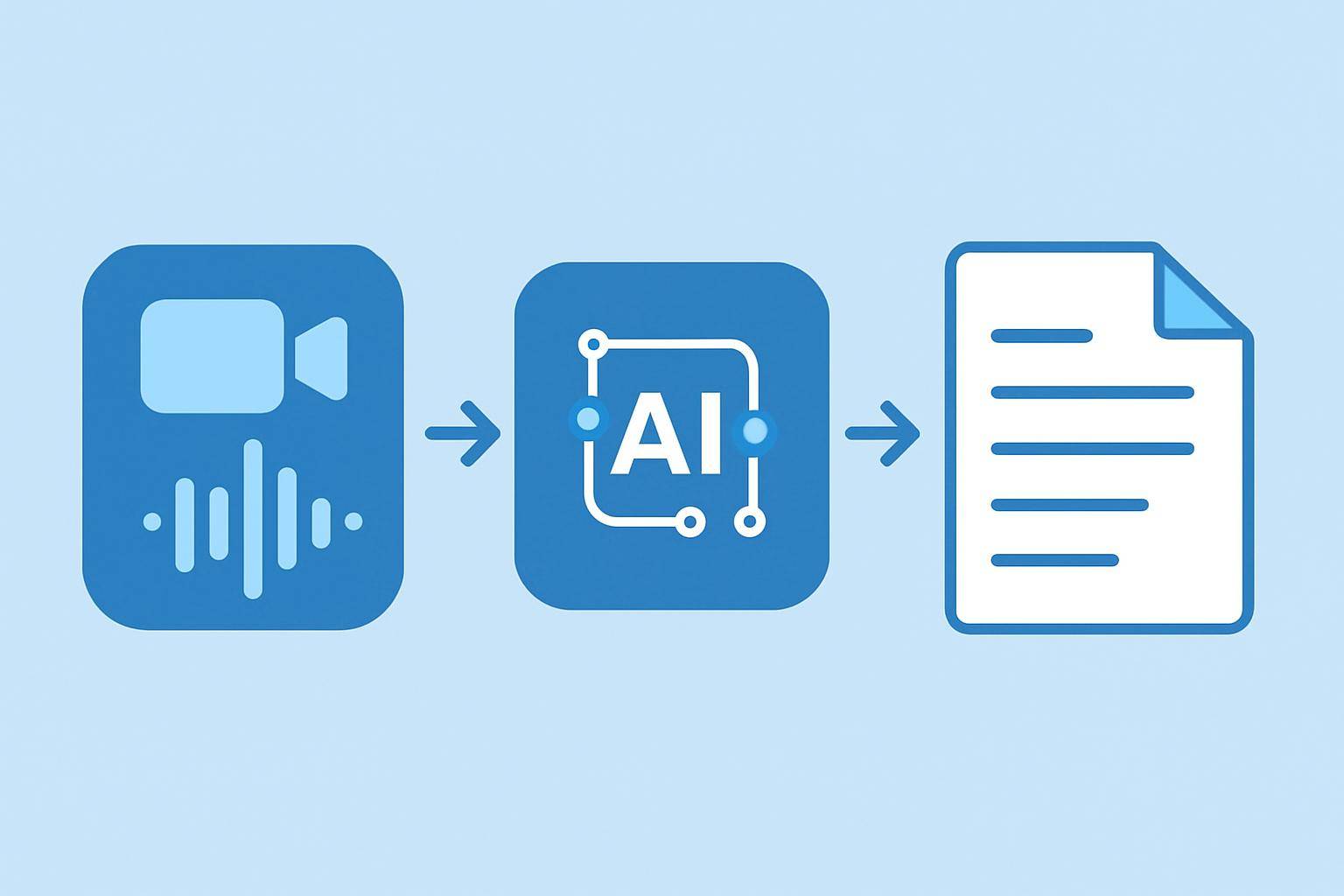
- Audio Extraction: Isolates the audio track from the video.
- Speech Recognition: Converts audio to text using AI models.
- Segmentation: Breaks down text into readable captions.
- Timestamp Alignment: Matches captions to exact points in the video.
- Review & Edit: Allows manual correction for accuracy and clarity.
Step-by-Step: Creating Accessible Video Captions with AI
Follow these steps to create and implement accessible captions for your videos:
1. Choose the Right AI Captioning Tool
Select a platform that supports your video formats, offers high accuracy, and allows manual editing. AIVideoSummary supports a wide range of video types and offers a streamlined workflow.2. Upload or Link Your Video
- Upload File: Drag-and-drop your video file or select from your device.
- Paste Video URL: For web videos (YouTube, Vimeo, etc.), paste the link directly.
Try it now: Upload a video or paste a URL on AIVideoSummary.
3. Let the AI Transcribe and Caption
The tool will process your video and generate initial captions. This typically takes a few minutes, depending on video length.4. Review and Edit Captions
Carefully check the AI-generated captions for:- Spelling and grammar mistakes
- Speaker identification
- Punctuation and readability
- Timing accuracy
- Non-speech elements (e.g., [music], [applause])
AI is fast but not always fully accurate—reviewing is essential for accessibility. Learn about AI subtitle accuracy here.
5. Export and Implement Captions
Export captions in formats like SRT, VTT, or embed directly in your video. Most video platforms support these formats for easy upload.6. Test for Accessibility
Play your captioned video and verify:- Captions are readable and well-timed
- All spoken and non-speech audio is represented
- No missing or out-of-sync captions
Refer to Web Content Accessibility Guidelines (WCAG) for compliance tips.
Comparison Table: Manual vs. AI Captioning
| Feature | Manual Captioning | AI Captioning with AIVideoSummary | |------------------------|-----------------------|-----------------------------------| | Speed | Slow (hours/video) | Fast (minutes/video) | | Accuracy | High (if expert) | High, but needs review | | Cost | High (labor/time) | Lower (automated) | | Multilingual Support | Limited | Wide language options | | Speaker Identification | Manual | Often automatic | | Editing Tools | Varies | Built-in editor | | Accessibility | Excellent (if expert) | Strong, with review |
For a deep dive into AI transcription, see our AI Transcription Accuracy guide and Transcribe Video to Text Using AI.
Practical Example: Captioning a Lecture Video
Suppose you're an educator with a 45-minute recorded lecture. You want to make it accessible for students with hearing impairments and non-native speakers. Here’s how you’d use AI:
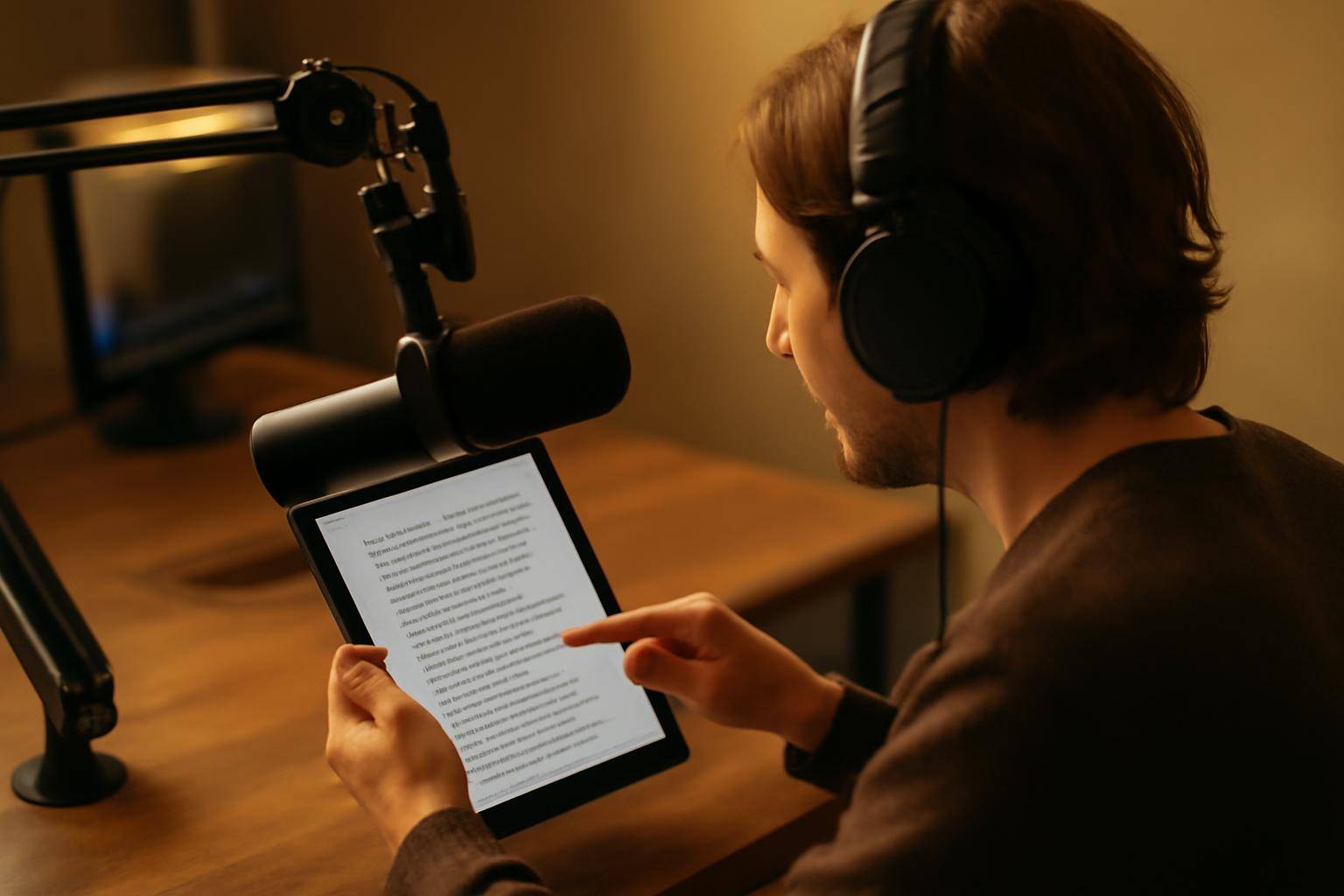
- Upload the lecture video to AIVideoSummary
- Wait for AI to transcribe and segment the audio
- Edit the captions: Fix technical terms, speaker names, add descriptions for important sounds
- Export SRT file and upload to your LMS or video platform
- Students now have searchable, accessible captions, improving comprehension and retention
For more educational use cases, visit our Education Transcription Service page and Ultimate Student Guide to AI Transcription and Notes.
Benefits of AI-Generated Accessible Captions
- Faster workflows: Caption hours of video in minutes
- Scalability: Process large video libraries easily
- Language support: Translate captions for global audiences
- Searchability: Make video content text-searchable for users and search engines
- Compliance: Meet legal accessibility standards (ADA, WCAG)
- Better engagement: Viewers can watch sound-off or follow along more easily
Limitations and Challenges of AI Captioning
While AI captioning tools have improved dramatically, they’re not perfect. Be aware of these limitations:
- Accents and Audio Quality: Heavily accented speakers or poor audio can reduce accuracy.
- Specialized Terminology: Technical jargon, names, or acronyms may be transcribed incorrectly.
- Multiple Speakers: Overlapping speech can confuse AI models.
- Background Noise: Loud music or background sounds may result in errors.
- Need for Human Review: Always review and edit AI captions before publishing.
For tips on getting the best results, check our AI Subtitle Accuracy and AI Transcription Accuracy articles.
Best Practices for Accessible Video Captions
- Use clear, simple language
- Break captions into logical, readable chunks (no more than two lines)
- Include non-speech elements (laughter, music, important sounds)
- Ensure high color contrast for caption text and background
- Test captions with real users when possible
- Keep up to date with accessibility standards
Internal Resources and Next Steps
- AI Video Transcription Services
- Legal Transcription Services
- Medical Transcription Services
- Summarize YouTube Video with AI
Ready to create accessible captions for your videos? Try AIVideoSummary’s workflow—just upload your video or paste a link to get started.