How to Generate Captions for YouTube Videos Automatically

Why Generate YouTube Captions Automatically?
Captions (or subtitles) are a crucial part of YouTube content. They make videos accessible to viewers who are deaf or hard of hearing, support international audiences, and boost video SEO by providing more searchable text. For creators, adding captions can increase watch time, engagement, and reach.
Manually transcribing and captioning videos is time-consuming. Fortunately, you can now generate YouTube captions automatically with AI-powered tools. These solutions save hours of work, improve consistency, and let you focus on content creation instead of repetitive tasks. In this guide, you’ll discover how to generate captions for YouTube videos automatically, practical workflows, best practices, and how platforms like AIVideoSummary can streamline the process.
Quick Start: How to Generate YouTube Captions Automatically
- Choose an AI transcription tool — Select a platform that supports YouTube video URLs and offers reliable subtitle export options.
- Paste the YouTube video link — Many tools, including AIVideoSummary’s video URL processor, let you simply paste your video link to get started.
- Let the AI transcribe and generate captions — The tool processes your video, transcribes the audio, and creates time-stamped captions.
- Review and edit captions — Check for errors or adjustments, especially for names, technical terms, or accents.
- Export your captions — Download in formats like SRT, VTT, or TXT, then upload to YouTube or use elsewhere.
You can generate YouTube captions automatically in just minutes—without expensive software or manual typing.
---
Understanding Automatic YouTube Caption Generation
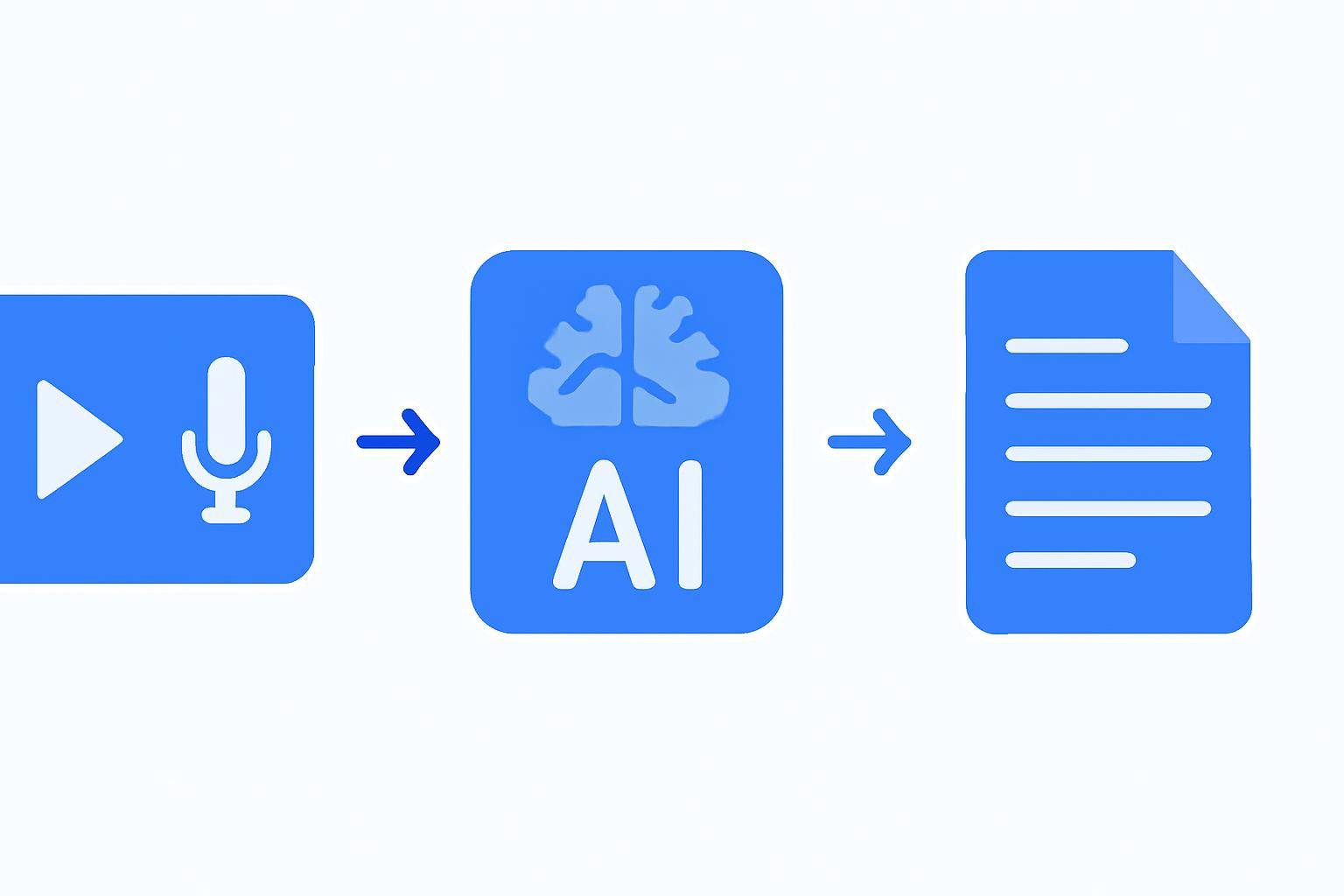
Automatic captioning uses speech-to-text AI to convert spoken content in a video into readable text, synchronized with the video timeline. This technology has improved rapidly, but it’s important to know its strengths and limitations.
How Does AI Video Transcription Work?
- Speech Recognition: AI algorithms analyze audio, segmenting it into words and phrases.
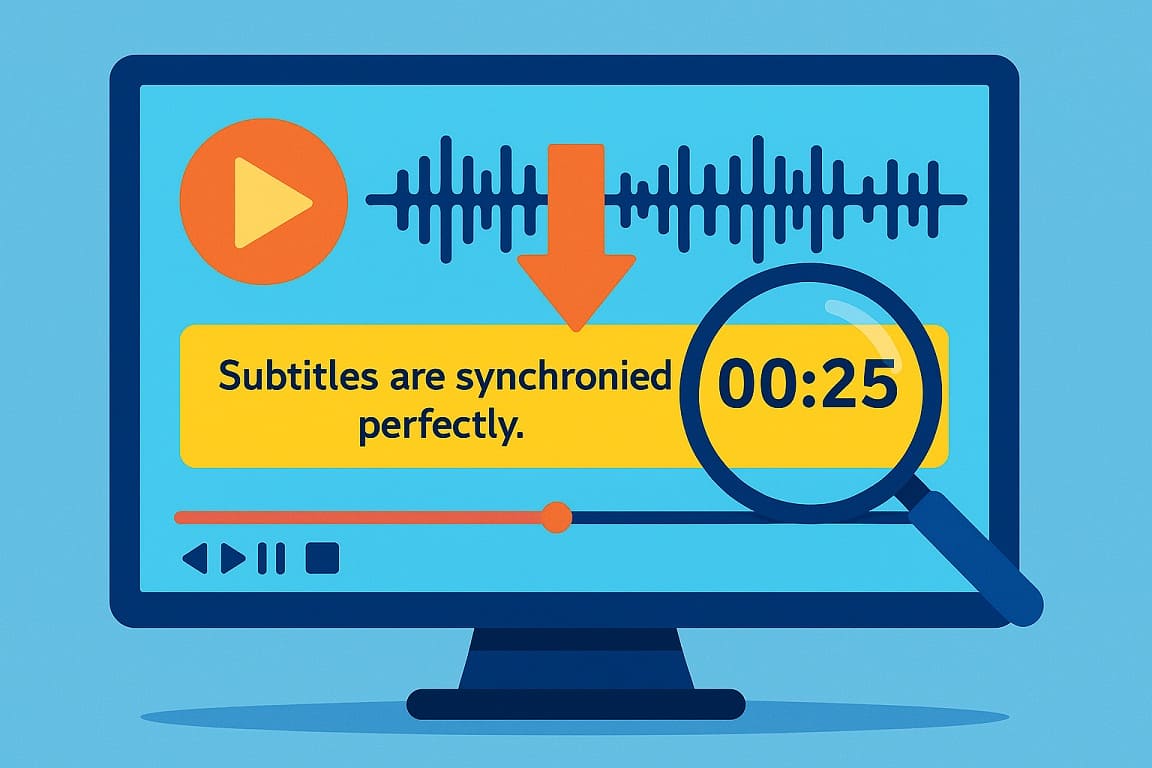
- Timestamp Generation: The tool matches each line of text to the corresponding moment in the video.
- Formatting: The transcript is split into caption-sized chunks for readability.
- Export Options: Files are prepared for upload to YouTube or other platforms.
Key Benefits of Automatically Generated Captions
- Accessibility: Makes videos usable for all audiences, including those with hearing impairments.
- SEO: Search engines can index captions, improving your video’s discoverability.
- International Reach: Viewers can translate captions into other languages.
- Engagement: Captions help viewers follow content in noisy environments or with the sound off.
For a deeper dive on using AI to transcribe videos, see Transcribe Video to Text Using AI: Complete Guide.
Step-by-Step Guide: Generating YouTube Captions Automatically
1. Selecting the Right AI Tool
Not all AI caption generators are equal. When evaluating options, consider:
- Accuracy rates (especially with accents and jargon)
- Supported export formats (SRT, VTT, TXT)
- Ease of use (upload or URL processing)
- Editing features
- Turnaround speed
- Pricing and limits
AIVideoSummary’s features include one-click URL processing, subtitle editing, and flexible exports—ideal for YouTube creators.
2. Uploading or Linking Your YouTube Video
Depending on the tool, you’ll either:
- Upload the video file directly
- Paste the YouTube video URL (see how here)
URL-based processing is typically faster and avoids large file uploads.
3. Generating and Reviewing Captions
Once the video is processed:
- AI transcribes the audio and creates time-stamped captions
- Review the output for any misheard words or formatting issues
- Edit as needed within the platform or by exporting and editing the caption file
4. Exporting and Uploading Captions to YouTube
- Download your captions as SRT or VTT files
- Go to your YouTube video’s “Subtitles” section and upload the file
- Optionally, add translated versions for more languages
For more on perfecting timestamps, check out Perfect Subtitles: Accurate Timestamps.
Comparison Table: Manual vs. Automatic vs. YouTube’s Built-in Captions
| Feature | Manual Captioning | YouTube Auto-Captions | AI Tools (e.g., AIVideoSummary) | |------------------------|---------------------------|---------------------------|-------------------------| | Accuracy | Highest (if expert) | Moderate (depends on audio) | High (varies by tool) | | Speed | Slow | Instant | Fast (minutes) | | Editing | Full control | Limited | Full control | | File Export | Yes (with effort) | No direct export | Yes (SRT, VTT, TXT) | | Supports URL Upload | N/A | N/A | Yes | | Cost | Time/labor intensive | Free | Free/Paid Plans | | Multilingual Support | If manually translated | Limited | Often supported |
For more details on accuracy, see AI Subtitle Accuracy and AI Transcription Accuracy.
Practical Example: Using AIVideoSummary for YouTube Captions
Let’s walk through generating captions for a YouTube video using AIVideoSummary:
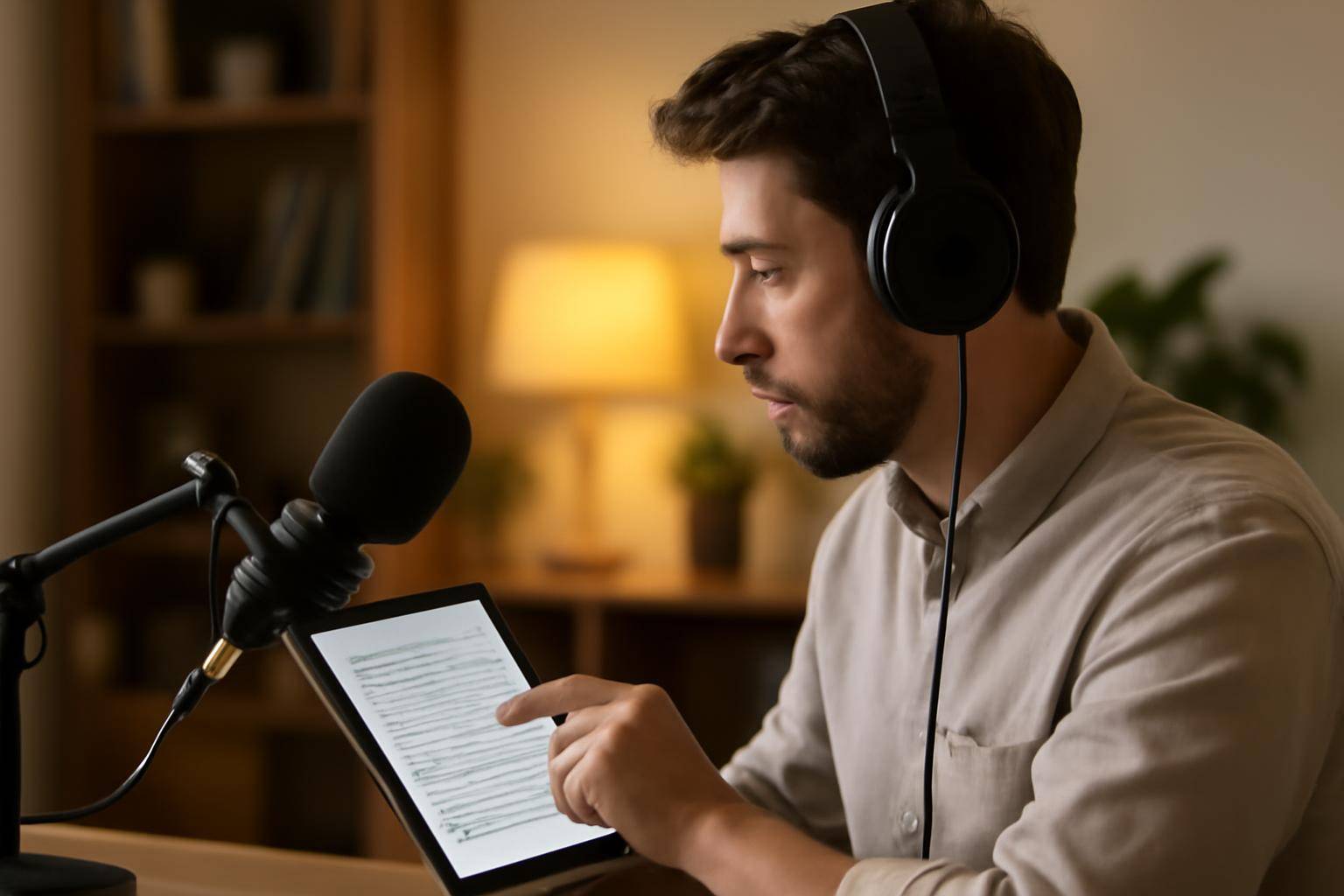
Example Workflow:
- Copy the YouTube video URL you want to caption.
- Go to the AIVideoSummary URL processing page.
- Paste the link and submit. The AI will analyze and transcribe the audio.
- Review the generated captions. Make quick edits as needed for accuracy, names, or timing.
- Export as SRT. Download your caption file.
- Upload to YouTube. Go to your video’s Subtitle settings and add the SRT file.
This process usually takes less than 10 minutes, depending on video length. Unlike YouTube’s built-in captions, you retain full editing control and can use the captions elsewhere—on your website, for course content, or for translations.
When Should You Use Automatic Captioning?
Automatic captioning is a great fit for:
- Educational creators & teachers (see Education Transcription Services)
- Businesses and marketers producing webinars, demos, or podcasts
- Legal, medical, or technical content (see Legal Transcription and Medical Transcription)
- Anyone with regular video uploads who needs scalable captioning
Best Practices for Accurate Automatic Captions
To get the most accurate YouTube captions automatically:
- Start with clear audio. Minimize background noise and speak clearly.
- Use a good microphone. Poor audio quality leads to more errors.
- Review and edit captions. Don’t rely on AI alone, especially for names or jargon.
- Keep sentences short. This helps with caption readability.
- Customize for your audience. Add translations or simplify technical language when needed.
For a full workflow, see Summarize YouTube Video with AI and Ultimate Student Guide: AI Transcription Notes.
Common Limitations and How to Address Them
While AI captioning is fast and cost-effective, perfection isn’t guaranteed. Expect occasional:
- Misrecognized words or names (especially with strong accents)
- Missed punctuation or odd formatting
- Timing mismatches for rapid speech or overlapping voices
How to address:
- Always review and edit before publishing
- Use the platform’s built-in editor or a text editor for SRT/VTT files
- Provide context or spellings for unusual terms in your audio
How to Upload Captions to YouTube
YouTube makes it easy to add captions:
- Go to YouTube Studio and select your video.
- Click “Subtitles” in the left menu.
- Choose “Add” next to the language.
- Select “Upload file”, then choose “With timing.”
- Upload your SRT or VTT file.
- Preview and publish.
This process ensures your captions are perfectly synced and accessible to all viewers.
Why Not Rely Solely on YouTube's Auto-Captions?
YouTube’s built-in auto-captioning is convenient but not always reliable. Challenges include:
- Lower accuracy with non-standard accents or technical language
- No export option for captions (unless you use third-party tools)
- Limited editing control
For professional, branded, or multilingual content, using AI tools like AIVideoSummary gives you better results and flexibility.
Try AIVideoSummary for Effortless Captions
You can upload any video or paste a YouTube URL to see how quickly captions are generated. Flexible plans, robust accuracy, and full editing control make it easy for creators, educators, and businesses.
Curious about pricing? See AIVideoSummary pricing for options that fit occasional creators or high-volume channels.
![Top 7 AI Tools to Get Subtitles from Any Video [Fast & Free] — subtitle tools](/images/subtitle-tools.jpg)